
Cel-Fi WAVE
Cel-Fi WAVE is the software platform used to activate, optimize, and manage the Cel-Fi products.
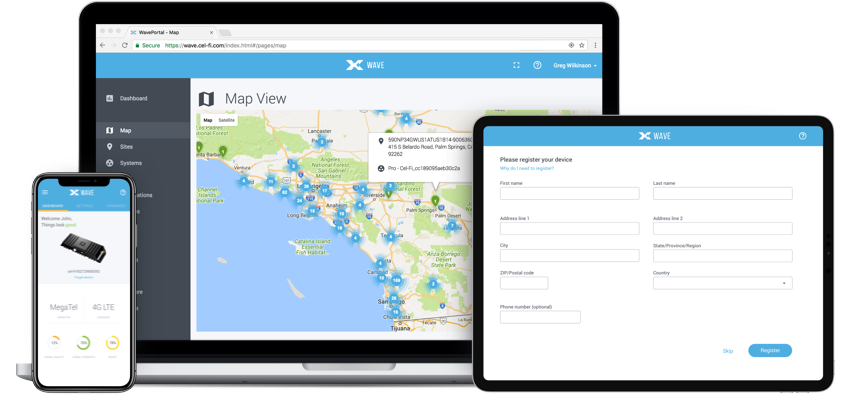
Designed as the interface to Cel-Fi Boosters
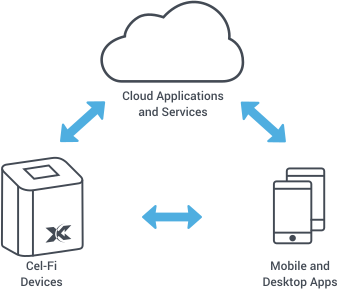
Cel-Fi WAVE is the software application and cloud-based portal solution used for registering, setting-up, optimizing, remotely monitoring, and updating the Cel-Fi hardware. Available on iOS, Android, PC and Mac devices.
Cel-Fi WAVE for Mobile
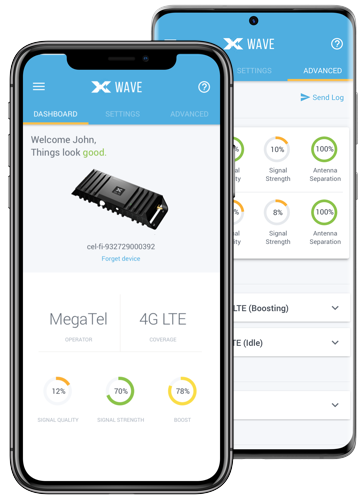
The Cel-Fi WAVE App is designed for end users, installers and channel partners to activate and manage the Cel-Fi product line. The app connects to the device via Bluetooth and is available on smartphones and tablets.
Features
Dashboard:
Glance-able view to the state of your Cel-Fi environment, including the Boost Strength indicator.
Settings:
Change the default Network Operator, select the booster technology (3G, 4G), setup an external antenna, configure the antenna position, and more.
Advanced Mode:
Get real-time data and performance metrics for troubleshooting devices.
Booster Updates:
Keep your Cel-Fi Booster up-to-date as new software versions become available.
Register (when required):
Easily activate and register your Cel-Fi Booster.
4-Step Installation
Install your booster, then download and run the WAVE app. Follow these setup/registration instructions. The Quick Start Guide instructions are included in the box, or can be download from the individual Support pages.
Download
Cel-Fi WAVE is available on both smartphones and tablets from the following app stores:



Cel-Fi WAVE for Computers
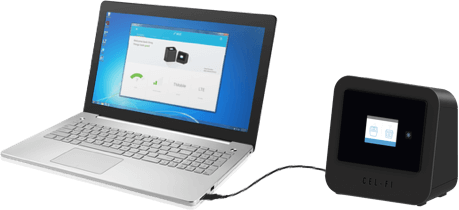
The Cel-Fi WAVE app is also available as a computer app and connects to the Cel-Fi device using a USB cable.
About
If you do not have a compatible Android or Apple device you will need to connect your Cel-Fi Coverage Unit (CU) to your computer with a USB cable.
The computer app will only work with Cel-Fi DUO, Cel-Fi PRO and Cel-Fi PRIME.
This app has all the same features as the Cel-Fi WAVE app (listed above).
Setup Instructions
Install your booster, then download and run the WAVE app. Follow these setup/registration instructions. The Quick Start Guide instructions are included in the box, or can be download from the individual Support pages.
Download
Cel-Fi WAVE is available for download on Windows PC and Mac computers: